
Choose the right workflow
Strip metadata produces a clean file without replacement fields. Strip + write fields removes the old metadata first, then writes only the values entered in the form.
The strip-only button ignores the form. That makes it safe to keep reusable author or copyright defaults visible while running a batch that should contain no descriptive metadata.
The six replacement fields
| Field | Use it for |
|---|---|
| Title | A short public name for the image or asset. |
| Subject | The project, topic, campaign, or publishing purpose. |
| Tags | Comma-separated public keywords used by compatible asset tools. |
| Authors | The creator or organization responsible for the image. |
| Copyright | The ownership notice you want carried with the file. |
| Comments | A concise public description or production note. |
No field is required. Empty values are omitted. Unicode text is supported, though the exact place a field appears can vary between JPG, PNG, and WebP metadata readers.
Build a controlled public set
Write fields only when they have a clear downstream purpose. A title and copyright line may be useful for a public asset library. Private project codes, internal paths, personal notes, and customer records do not belong in a public image.
Select one queued image and edit Output name below the list. Each file keeps its own choice. Results save beside their sources; Reset or an empty name restores the -stripped default. Existing filenames receive a number. Neither strip action renames or overwrites the original.
Once a file leaves your computer, any field written into it can travel with copies. Treat replacement fields as public information.
Run separate batches when different images need different authors, rights statements, or campaign tags. The form applies the current values to every compatible image in that batch.
Review optional AI suggestions
Suggest metadata can draft Title, Subject, Tags, and Comments for queued images. It never supplies Author or Copyright. Those ownership fields remain under direct user control.
Suggestions are handled one image at a time. Review the image and proposed values, make edits, then apply or skip the draft. Accepted values appear in the rewrite fields and remain editable for that image. Switching between reviewed images preserves each image's values. They are not written into a file until Strip + write fields runs.
The feature sends a sanitized image rendering to the selected OpenAI or Gemini model only after the every-run disclosure is approved. Provider charges and terms apply to the user's own account.
Prepare metadata for publishing
AI Stripper can remove private history and replace it with a reviewed public field set before an image reaches a CMS or digital asset manager. This reduces repeated typing and keeps the source description consistent across a publishing team.
WordPress core reads supported IPTC and EXIF image metadata. During supported upload paths, it may use recognized title, caption, or alt values as attachment defaults. That behavior is not universal. Image format, server support, upload method, and plugins can change which fields appear.
For search work, use AI Stripper's reviewed Title, Subject, Tags, and Comments as portable source material. Then finish the page inside the CMS. Google's image SEO guidance places particular weight on useful alt text and relevant page context. Its documented support for embedded photo metadata focuses on specific creator, credit, copyright, and licensing fields.
Embedded fields can support asset organization, rights context, and faster SEO or AI-search publishing. They do not guarantee rankings, answer-engine inclusion, generative citations, or a Google Images enhancement. Write alt text for the image's purpose on the page, and add the appropriate page copy and structured data in the CMS.
AI Stripper does not write a complete image-licensing record. If a project needs Google's Licensable badge, follow the required IPTC or structured-data specification in addition to the fields AI Stripper provides.
Save startup defaults
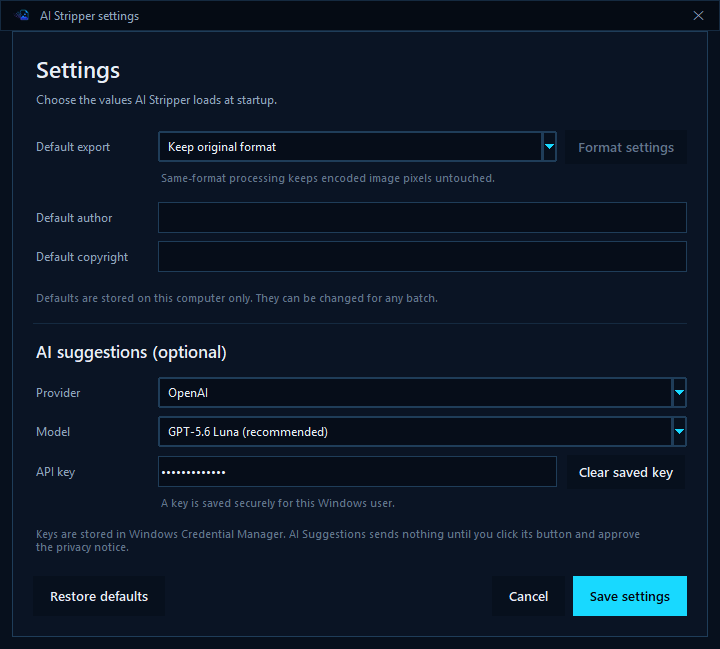
Open Settings to choose the values AI Stripper loads at startup. The app can remember:
- The default output format and its format-specific conversion options.
- A default author.
- A default copyright line.
- An optional AI provider and supported vision model.
Changing controls for one batch does not overwrite the saved defaults. Return to Settings and select Save settings when the startup values should change.
Restore defaults returns the settings window to the built-in values. Save after restoring if those values should load next time.
Where settings are stored
Settings are stored for the current Windows user at %LOCALAPPDATA%\Sputnik Digital\AI Stripper\settings.json. The file contains export defaults, author, copyright, AI provider, and model values. It does not contain images, provider API keys, or a processing history.
OpenAI and Gemini API keys are stored in Windows Credential Manager for the current user. When a key exists for the selected provider, Settings displays masked dots without loading the stored secret into the field. Focusing the field clears only that placeholder so a replacement can be entered. Removing a key from Settings deletes the saved credential.
Delete that file to remove the saved values manually. AI Stripper recreates a clean settings file when new defaults are saved.
Questions
Do I have to fill every rewrite field?
No. Empty fields are omitted, and the strip-only workflow writes none of them.
Do saved defaults apply to every Windows user?
No. They are stored in the current user profile. Another Windows account has its own settings.
Does changing a field in the main window overwrite my defaults?
No. Batch changes are temporary until values are saved from the Settings window.
Can AI Suggestions change Author or Copyright?
No. Suggestions are limited to Title, Subject, Tags, and Comments. Author and Copyright remain under direct user control.
Will these fields improve search rankings automatically?
No. They can reduce publishing work and provide portable source metadata for compatible systems. Search and AI visibility still depend on the page, contextual alt text, captions, structured data, crawlability, and the platform evaluating the content.
Where is my provider API key stored?
In Windows Credential Manager for the current Windows user, not in settings.json. Masked dots in Settings indicate that a key is saved without exposing it.
Continue through the AI Stripper manuals
Review Metadata Removal and Conversion for the earlier part of this workflow.
Continue with Installation, Updates, and Privacy.
Reference files Keep the manual nearby
Work from the complete release manual.
The versioned PDF covers every control, installation, privacy behavior, and troubleshooting step in AI Stripper 2.3.2.