Install the signed release
Download AI Stripper Setup 2.3.2.exe from the official product page. Windows will ask for administrator permission because the standard destination is Program Files.
- Close any older AI Stripper window.
- Run the installer and confirm that Windows identifies Sputnik Digital LLC as the verified publisher.
- Choose the default Program Files location or another folder where you have permission to install software.
- Open AI Stripper from the Start menu or the optional desktop shortcut.
The product page also carries a signed one-file executable. Use it when you do not want an installed Start menu entry.
Open the images
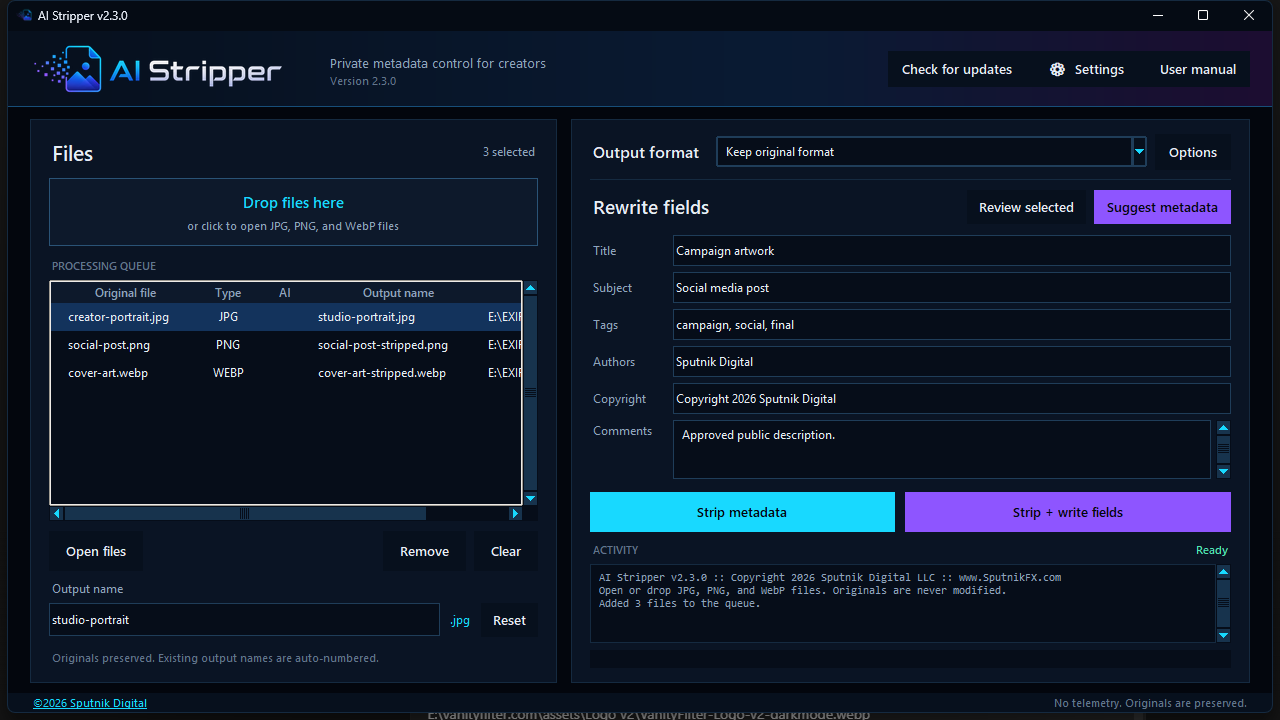
Drag JPG, JPEG, PNG, or WebP files into the queue, or select Open files. You can mix supported formats in one batch.
The queue shows the original filename, type, AI status, requested output name, and source folder. Use the horizontal scrollbar to inspect columns that extend beyond the visible area.
Use Remove to take selected queue entries out of the batch. Clear empties the queue. Neither action changes the source files.
AI Stripper can preserve animated WebP content during same-format stripping. Converting an animated image to a different format is rejected instead of silently flattening it.
Choose the output
Keep original format is the safest default. It removes metadata without decoding or recompressing the encoded image data.
Choosing JPG, PNG, or WebP converts every supported item in the current batch. Conversion re-encodes images, so AI Stripper opens format-specific options before processing. Use conversion only when the new format is part of the goal.
| Output choice | What happens | Pixel behavior |
|---|---|---|
| Keep original format | Metadata is removed from the existing container type. | Encoded image data is preserved. |
| JPG, PNG, or WebP | The image is decoded and written into the selected format. | The result is re-encoded. |
Choose names for the outputs
- Select one image in the queue, then edit Output name below the list.
- Select the next image and enter its name. Each queued file keeps its own choice.
- Choose the output format separately. It supplies the extension, replacing a pasted JPG, JPEG, PNG, or WebP extension.
- Use Reset or leave the name empty to restore the source name with
-strippedadded.
Names last for the current queue. The editor is disabled during processing and when multiple files are selected. Invalid Windows names, paths, trailing spaces or periods, and overlong filenames are rejected before the batch starts. AI suggestions do not rename files.
Strip or rewrite
Select Strip metadata when the goal is a clean file with no replacement fields. Select Strip + write fields when you want the old metadata removed and a small controlled set written back.
The rewrite form supports Title, Subject, Tags, Authors, Copyright, and Comments. Empty fields are omitted. The strip-only workflow ignores anything entered in the form.
The activity panel reports each completed file and any input that could not be processed. Keep the window open until the batch is finished.
Optional: request metadata suggestions
Suggest metadata is optional. Core stripping, rewriting, and conversion work without an OpenAI or Gemini account.
- Open Settings, select a provider and supported vision model, then save your own API key.
- Select one or more queue items and choose Suggest metadata.
- Read the provider disclosure. Continue only if you agree to send a sanitized image copy to that provider.
- Review each Title, Subject, Tags, and Comments draft. Edit it, apply it, skip it, or stop the remaining queue. With one image selected, accepted values appear immediately in the visible rewrite fields.
- Use Strip + write fields when the reviewed values are ready.
Every approval sends one metadata-free JPEG rendering at a time, resized to a maximum of 1600 pixels. AI Stripper does not include the source filename, folder path, existing metadata, Author, Copyright, or other rewrite values.
Find and verify the results
Each result saves beside its source. Without a custom name, portrait.jpg becomes portrait-stripped.jpg. Set Output name to studio-portrait and choose WebP to produce studio-portrait.webp. If that name exists, the next output is studio-portrait-2.webp. Originals remain unchanged.
- Open the resultConfirm the image displays normally in your usual viewer.
- Check the formatMake sure the extension matches the output choice.
- Keep the originalRetain it until the cleaned file has passed your publishing workflow.
Questions
Can I process several images at once?
Yes. Open or drop several supported files into the queue and run one batch. The original files remain unchanged.
Where does AI Stripper save completed images?
Beside each source file, using its chosen Output name or the default name with -stripped added. Existing filenames receive a number. The original stays unchanged.
Which option preserves encoded image data?
Keep original format. Conversion to another format re-encodes the image.
Do I need an AI provider account?
No. OpenAI and Gemini are used only when you configure your own API key and start Suggest metadata. All core image-processing workflows work without that feature.
Continue through the AI Stripper manuals
Continue with Metadata Removal and Conversion.
Reference files Keep the manual nearby
Work from the complete release manual.
The versioned PDF covers every control, installation, privacy behavior, and troubleshooting step in AI Stripper 2.3.2.